Why Knowing How to Get Your SIM Number Matters
Knowing how to get your SIM number is something most people never think about — until they suddenly need it.
Here are the fastest ways to find it right now:
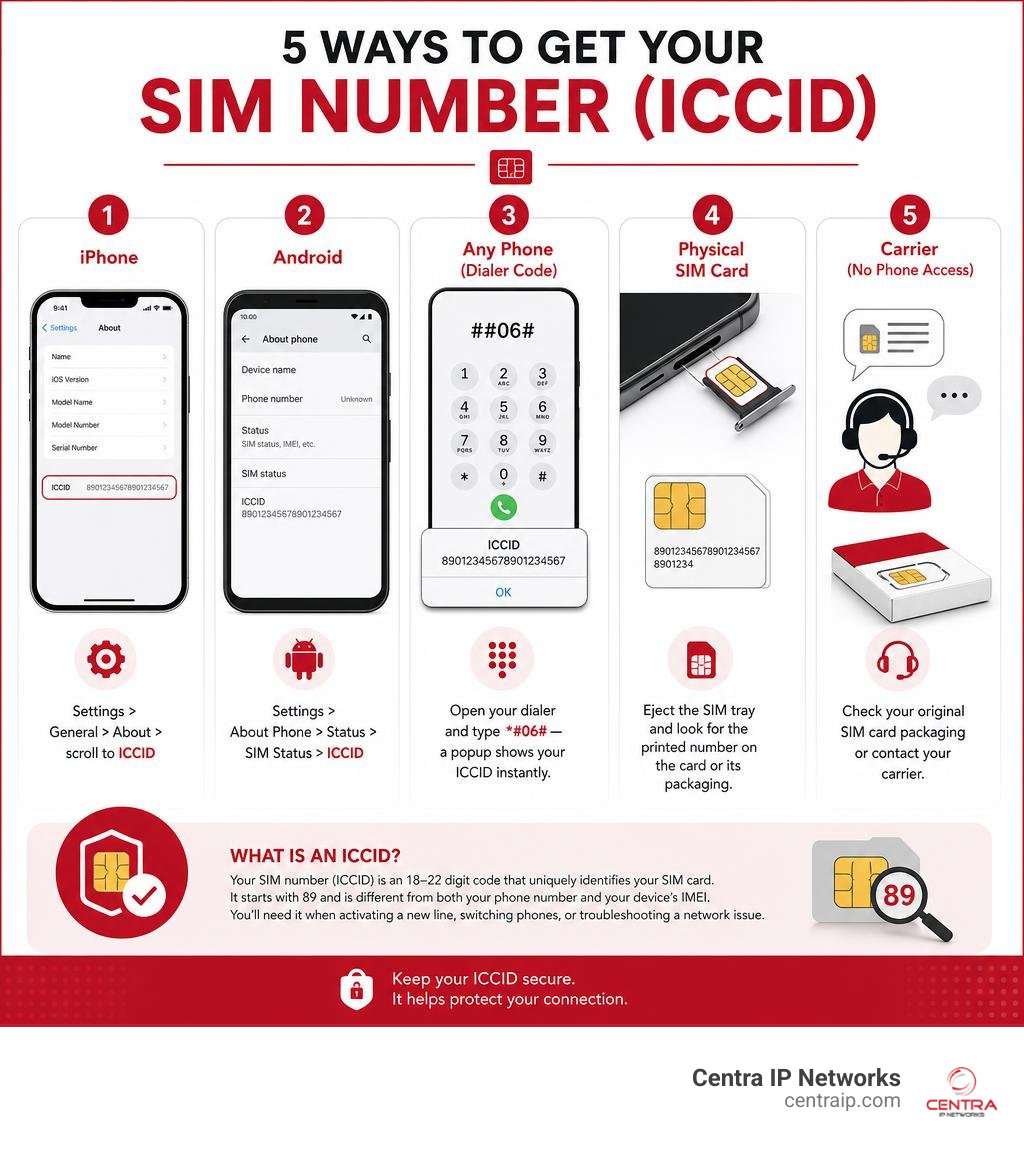
- iPhone: Go to Settings > General > About > scroll to ICCID
- Android: Go to Settings > About Phone > Status > SIM Status > ICCID
- Any phone: Open your dialer and type *#06# — a popup shows your ICCID instantly
- Physical SIM card: Eject the SIM tray and look for the printed number on the card or its packaging
- Can’t access your phone: Check your original SIM card packaging or contact your carrier
Your SIM number (also called the ICCID) is an 18–22 digit code that uniquely identifies your SIM card. It starts with 89 and is different from both your phone number and your device’s IMEI. You’ll need it when activating a new line, switching phones, or troubleshooting a network issue.
Whether you’re upgrading a device, managing multiple lines for your business, or just can’t figure out why your SIM isn’t working — having this number on hand saves time and frustration.
I’m Patrick Brangan, and with over 20 years in business technology and unified communications, I’ve helped hundreds of small and mid-sized businesses navigate exactly these kinds of connectivity challenges — including knowing how to get a SIM number quickly when setting up or porting lines. In this guide, I’ll walk you through every reliable method, step by step.
How to get sim number word roundup:
What is a SIM Number (ICCID) and Why Do You Need It?
To understand how your mobile device connects to the rest of the world, we have to look closely at the tiny piece of hardware powering it. Your SIM (Subscriber Identity Module) card is essentially your phone’s passport. The SIM card number is officially known as the ICCID, which stands for Integrated Circuit Card Identifier.
Think of the ICCID as a global, one-of-a-kind serial number. It is an 18-to-22-digit code that is permanently burned into the SIM chip during manufacturing. No two SIM cards in the world share the same ICCID.
When you purchase a new mobile device or switch carriers, the cellular network needs a way to register your physical hardware to your digital subscription. This is where the ICCID comes into play. When you initiate a transfer, your carrier links this 19- or 20-digit serial number to your account, authorizing your device to use their towers for calls, texts, and high-speed data.
For a deeper dive into how these identifiers function during cellular setups, you can read this How to Find ICCID – Complete Step-by-Step Guide.
Understanding how your carrier registers these numbers is also incredibly helpful if you are trying to scale your business communications quickly. If you are looking to deploy new lines for a growing team, you might want to explore How to Get a Phone Number in Minutes to see how virtual and cellular options can be spun up almost instantly.
SIM Number (ICCID) vs. IMEI vs. Phone Number
It is easy to get confused by the alphabet soup of mobile technology. Let’s break down the three main numbers associated with your mobile device so you never mix them up again:
- SIM Number (ICCID): This identifies the SIM card itself. It is the physical or digital chip that contains your subscriber information. It typically begins with the prefix “89” (the international telecommunications identifier) and is up to 22 digits long.
- IMEI (International Mobile Equipment Identity): This 15-digit number identifies the physical phone hardware, not the cellular service. Even if you take the SIM card out, the phone keeps the same IMEI. It is used by carriers to track lost or stolen devices and ensure the device is compatible with their network bands.
- Phone Number (MSISDN): This is the actual 10-digit number people dial to reach you. Interestingly, your phone number is not permanently etched onto your SIM card. Instead, your carrier’s database associates your phone number with your SIM card’s ICCID. This is why you can keep your phone number even when you swap out an old SIM card for a new one.
To explore how these numbers interact when trying to recover a misplaced number, check out this guide on How to Get Your Mobile Number from Your SIM (iPhone + Android).
How to Get SIM Number from Your Device Settings
If your phone is powered on and working, you do not need to hunt down a paperclip or eject your SIM tray to find your ICCID. Both Apple and Android devices store this information deep within their operating systems, allowing for quick digital retrieval in just a few taps.

How to Get SIM Number on iPhone (iOS)
Apple makes finding your ICCID incredibly straightforward. Because iOS is standardized across all iPhone models, the steps are identical whether you are using a modern iPhone 15 or an older device.
In fact, the Apple Community forum has tracked significant user demand for this exact process, with dozens of upvotes on threads specifically asking how to find the SIM number on older models like the iPhone 6s during upgrades.
To find your SIM number on any iPhone:
- Open the Settings app.
- Tap on General.
- Tap on About.
- Scroll down until you see the ICCID field. The long number listed next to it is your SIM card number. You can press and hold on the number to copy it directly to your clipboard.
How to Get SIM Number on Android Devices
Because Android operating systems are customized by different manufacturers (like Samsung, Google, and Motorola), the exact menu names might vary slightly. However, the general path remains highly consistent.
This topic is highly searched in tech circles; a popular Android Stack Exchange thread addressing how to find the 20-digit SIM number has garnered over 325,570 views, highlighting just how often users need to locate this hidden setting.
To find your SIM number on most Android devices:
- Open your Settings app.
- Scroll to the bottom and tap About Phone or About Device.
- Tap on Status or Status Information.
- Tap on SIM Status (on some models, you may need to select IMEI Information or look under SIM Info).
- Look for the ICCID or SIM Card ID.
If your specific Android model displays a blank field or doesn’t list the ICCID here, you can find alternative community-driven troubleshooting steps in this thread on How do I find out my SIM number?.
Finding Your SIM Number on Physical Cards and eSIMs
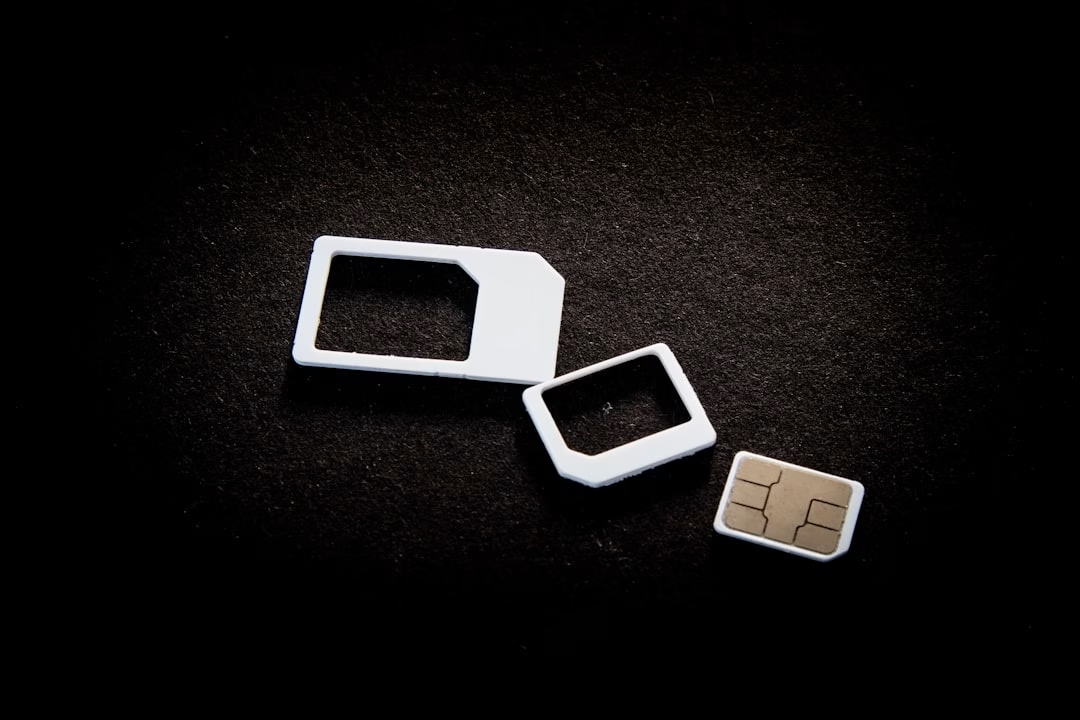
As mobile technology has evolved, the physical size of SIM cards has shrunk dramatically—from the original credit-card-sized chips to micro-SIMs, nano-SIMs, and now entirely digital eSIMs. Depending on what type of SIM your device uses, finding the number requires different approaches.
Locating the ICCID on a Physical SIM Card
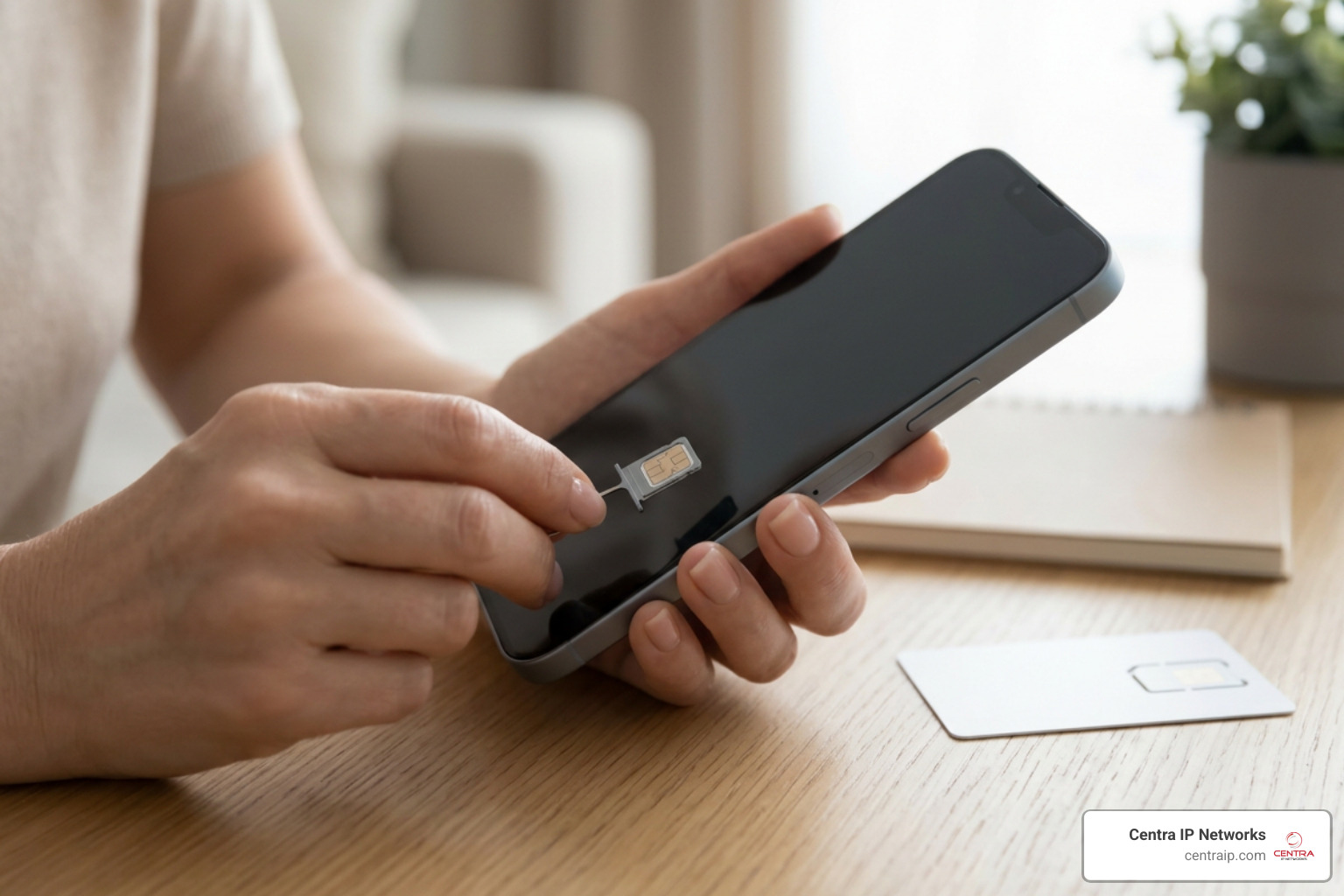
If your device is turned off, has a dead battery, or won’t boot past the startup screen, you can find the ICCID printed directly on the physical card.
- Locate your SIM tray: On most modern smartphones, the SIM tray is located on the side of the device.
- Eject the tray: Insert a SIM ejector tool (or a sturdy metal paperclip) into the small pinhole next to the tray. Press firmly but gently until the tray pops out.
- Inspect the card: Carefully remove the tiny nano-SIM card. Because nano-SIMs are incredibly small, the 19-to-20-digit ICCID is printed in microscopic text on the plastic backing or around the gold chip. You may need a magnifying glass or your phone’s camera zoom to read it clearly.
- Check the packaging: If the print on the card is too small or has worn off, look at the original credit-card-sized plastic holder that your SIM card was popped out of when you first bought it. The full ICCID and barcode are always printed on this packaging.
Retrieving the eSIM Number on iPhone and Android
An eSIM (embedded SIM) is a digital SIM profile downloaded directly onto a chip permanently soldered inside your phone. Because there is no physical card to eject, nano-SIM size constraints do not apply here.
To find your eSIM’s ICCID:
- On iPhone: Go to Settings > General > About. Scroll down to the Available SIM or Digital SIM section. The ICCID listed there belongs to your active eSIM profile.
- On Android: Navigate to Settings > Connections > SIM Manager (or Network & Internet > SIMs). Tap on your active eSIM profile to view its details, including the ICCID.
If you are deploying eSIMs for business travel or remote workforces in our service areas—such as Dallas, Fort Worth, Orlando, or Tampa—eSIMs can be provisioned instantly via QR codes, eliminating the need to physically mail cards to employees.
Alternative Methods: Dial Codes, Carriers, and Packaging
If you can’t find the setting on your phone or don’t want to dig through menus, there are several universal workarounds to retrieve your SIM details quickly.
Using the Universal Dial Code (*#06#)
Almost every mobile phone supports universal shortcodes (known as USSD codes) that communicate directly with the device’s hardware.
The code *#06# is a universal command. To use it:
- Open your phone’s Phone or Dialer app.
- Type *#06# (you do not need to press the call button).
- A diagnostic screen will instantly pop up.
This screen displays your device’s vital hardware identifiers, including your IMEI numbers and, on most modern devices, your ICCID (SIM number) alongside a scannable barcode. This is an incredibly fast way to verify device compliance and retrieve serial numbers without clicking through multiple settings screens.
Getting Your SIM Number from Your Carrier or Packaging
If you cannot access your phone’s software and the physical SIM card is unreadable, you can still retrieve your serial number through your service provider:
- Carrier Apps: Log into your T-Mobile, AT&T, or Verizon account app on another device. Your active SIM card numbers are listed under your device or line details.
- Welcome Documents & Bills: Check the welcome email or physical documents you received when you first activated your cellular service. Your monthly billing statement may also list the active ICCID associated with each line.
- Customer Support: You can call your carrier’s customer service line. After verifying your identity, the representative can read your active SIM card number directly from their database.
Best Practices When Switching Phones
Switching to a new device is exciting, but a little preparation prevents your lines from going dark. Whether you are transitioning between physical SIM cards or migrating to an eSIM profile, following a structured process ensures a seamless transfer.
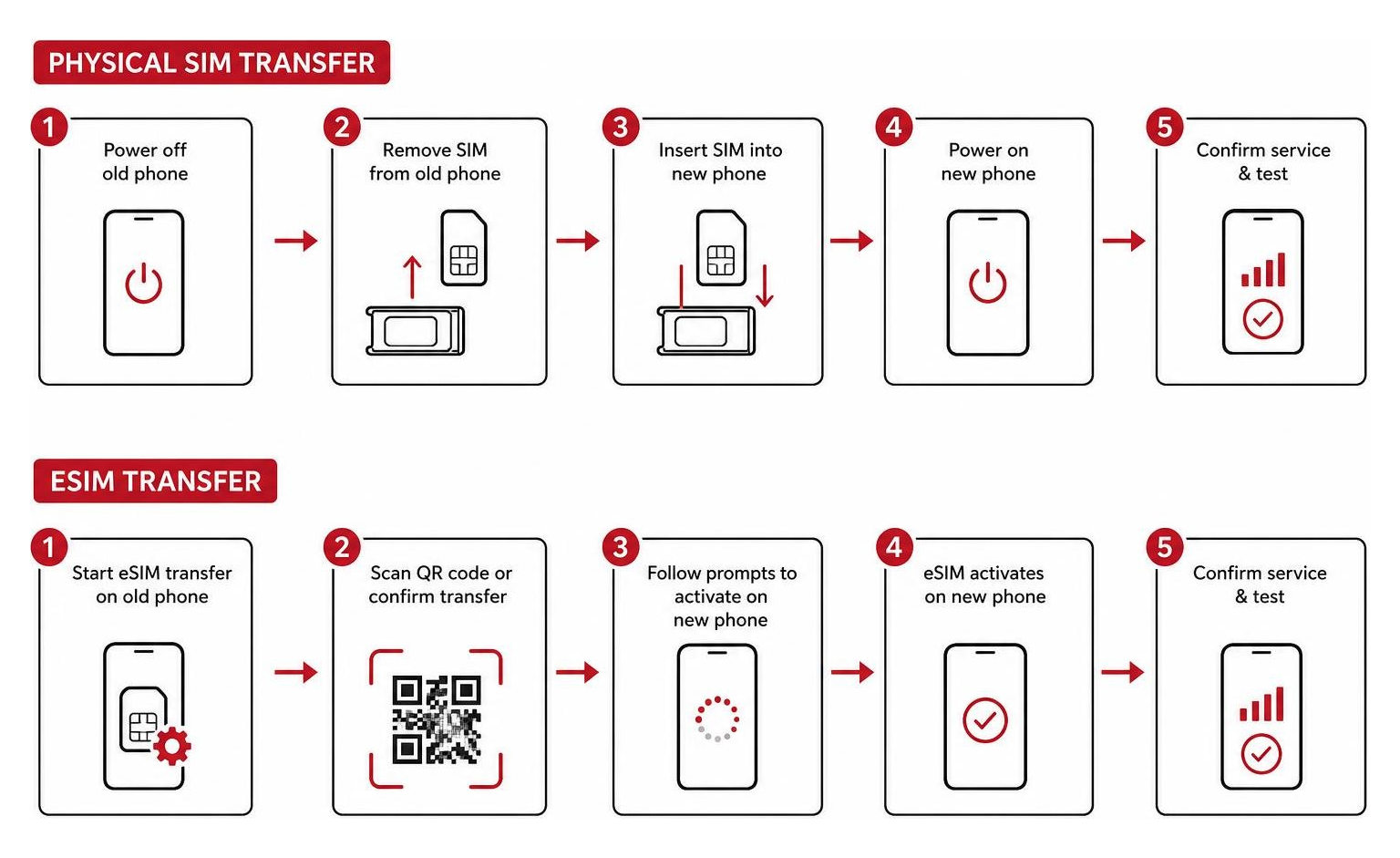
When upgrading or switching devices, keep these best practices in mind:
- Verify Carrier Compatibility: Ensure your new phone is “unlocked” (not restricted to a specific carrier) and supports the network bands of your provider.
- Backup Your Data: Always perform a full cloud backup of your current phone before moving your SIM card or transferring your eSIM profile.
- Keep Your Current Line Active: Never cancel your old cellular plan before your number and SIM transfer are fully complete. If you cancel early, you risk losing your phone number permanently.
- Clean the Physical SIM: If you are moving a physical card, gently wipe the gold contacts with a dry microfiber cloth to remove dust or oils that could cause connection errors.
| Transfer Step | Physical SIM Card | eSIM Profile |
|---|---|---|
| Preparation | Power off both phones. | Connect both phones to Wi-Fi. |
| Execution | Eject tray, move card to new phone, insert tray. | Scan carrier QR code or use carrier app to download. |
| Activation | Power on; wait for signal bars (usually instant). | Approve the transfer prompt on your screen. |
| Verification | Make a test call to confirm network registration. | Confirm cellular data works with Wi-Fi turned off. |
Frequently Asked Questions About SIM Numbers
What should I do if my phone won’t turn on and I need my SIM number?
If your device is completely dead, your best option is to perform a physical inspection. Use a paperclip or SIM ejector tool to pop open the SIM tray and remove the physical card. The ICCID will be printed in tiny numbers on the back. If you are using an eSIM or the text is too small to read, check your original SIM card packaging, log into your online carrier portal, or visit your local carrier retail store with your photo ID.
Why is my SIM number showing as blank in my Android settings?
Sometimes, Android settings will display “Unknown” or leave the SIM number field blank. This typically happens if the SIM card is unprovisioned (meaning it hasn’t been activated by a carrier yet), if the card is slightly misaligned in the tray, or if your carrier’s configuration restricts the OS from reading the chip directly. You can bypass this issue by dialing *#06# on your keypad or inserting the SIM card into a different phone to see if it reads correctly.
Can I get a virtual phone number without a physical SIM card?
Yes! Modern cloud communications allow you to bypass physical SIM cards entirely for your business. By using virtual phone numbers, you can make and receive calls, send texts, and manage routing using an app on your existing smartphone or computer.
To learn more about how this works and how it can simplify your operations, read our comprehensive guide on Virtual Phone Number 101.
Conclusion
Finding your SIM card number doesn’t have to be a headache. Whether you quickly look it up in your iPhone or Android settings, dial *#06# for an instant popup, or inspect the physical card itself, having this 19-to-20-digit ICCID on hand is the key to seamless device upgrades and troubleshooting.
For businesses operating across Texas and Florida—including Dallas, Fort Worth, Orlando, Tampa, St. Petersburg, Clearwater, and Sarasota—managing physical SIM cards for dozens of employee phones can quickly become a logistical nightmare.
At Centra IP Networks, we solve this complexity by offering comprehensive Managed IT and Cloud Communications services on one unified platform. Our unique approach allows you to consolidate your phone systems, high-speed Internet connectivity, and cloud solutions into a single provider with one clear, predictable bill. Leveraging over 35 strategic industry partnerships, we design tailored, cost-effective communication systems that keep your mobile workforce perfectly connected without the hassle of tracking physical chips.
Ready to upgrade your business communication setup and move beyond traditional carrier limitations? Discover how easy it is to scale your operations by checking out our guide on How to Get Business Phone Number, or contact us today to build a custom solution for your team.