
Why Google Meet Conference Rooms Are the Smarter Way to Run Hybrid Meetings
Google Meet conference rooms give your team a dedicated, always-ready video meeting space — no cables to plug in, no settings to fiddle with, and no tech headaches before every call.
Here is a quick overview of what they are and what they can do:
| Feature | What It Means for You |
|---|---|
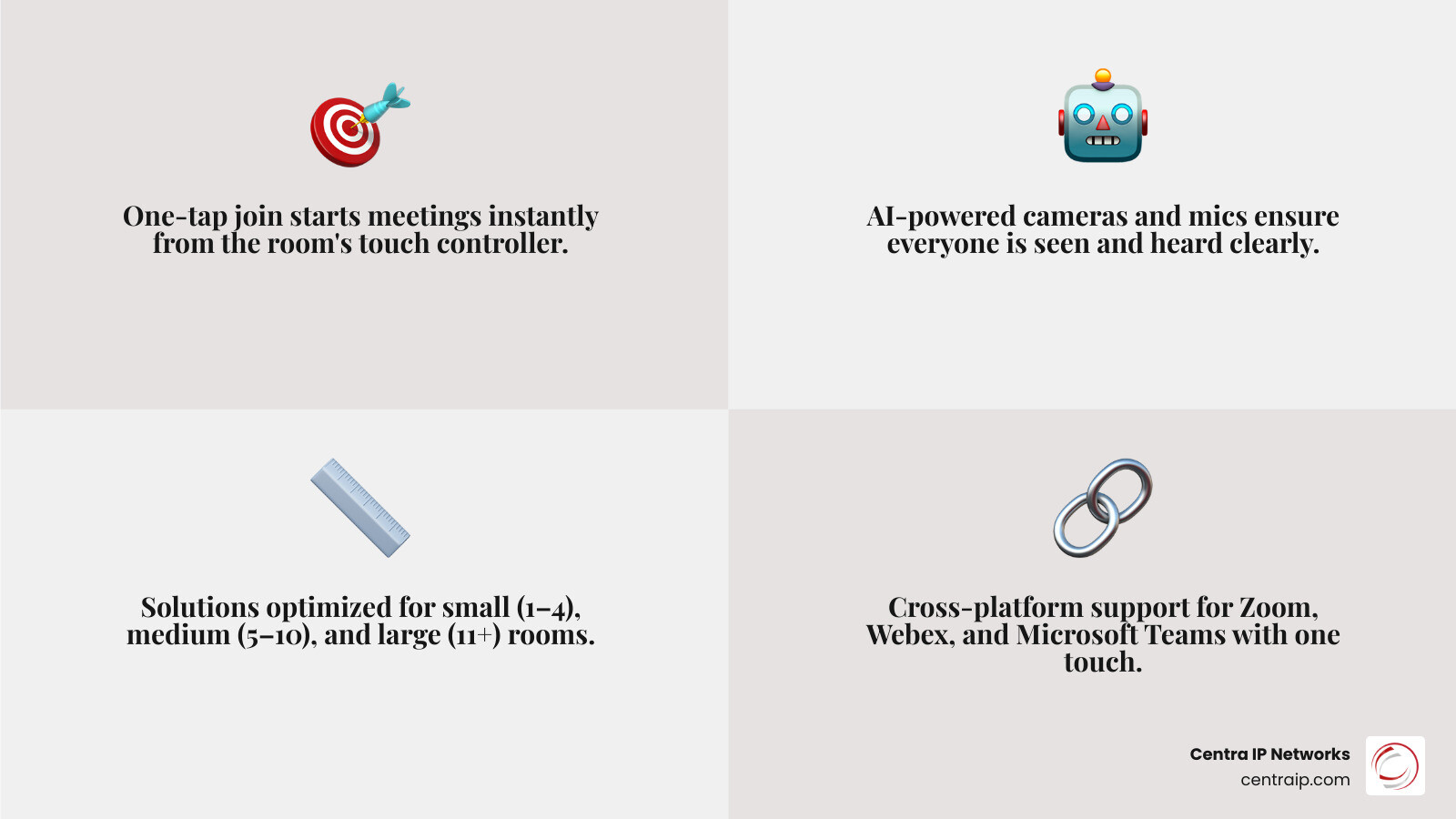
| One-tap join | Start meetings instantly from the room’s touch controller |
| AI-powered video and audio | Smart cameras and mics keep everyone seen and heard |
| Room sizes supported | Small (1–4), Medium (5–10), Large (11+) |
| Cross-platform support | Join Zoom, Webex, or Microsoft Teams with one touch |
| Gemini AI tools | Auto notes, real-time translation, meeting recaps |
| Connect Room | Join from your laptop using ultrasound proximity detection |
| Trusted hardware partners | Logitech, Lenovo, ASUS, Acer — all with 2-year warranties |
Setting up dedicated conference room hardware is one of the biggest upgrades a business can make to its communication stack. Instead of every employee wrestling with their own webcam and laptop audio, a properly equipped room handles everything automatically — so meetings start on time and everyone on the call can actually see and hear what is happening.
The gap between in-room and remote participants is one of the most common complaints in hybrid workplaces today. The right hardware, paired with Google’s AI features, closes that gap significantly.
I’m Patrick Brangan, and over my 20+ years in business technology I’ve helped small and mid-sized companies design and deploy unified communications solutions — including Google Meet conference rooms — that replace the chaos of juggling multiple vendors with one clean, reliable setup. In the sections below, I’ll walk you through everything you need to know to choose, configure, and get the most out of your Google Meet room hardware.
What Google Meet conference rooms are and how Google Meet hardware works
At a basic level, Google Meet conference rooms are dedicated meeting spaces equipped with certified hardware that runs Google Meet reliably every day. Instead of building every call around somebody’s laptop, the room itself becomes the meeting endpoint.
These setups typically include:
- A camera or video bar
- Microphones and speakers
- A touch controller
- A compute device or Android-based appliance
- A display or dual displays
- A room calendar resource tied to Google Calendar
The result is simple: walk in, tap the controller, and join.
What is Google Meet hardware?
Google Meet hardware is Google’s room system ecosystem for conference spaces. It includes Google’s own Series One family and partner-built room kits from companies such as Logitech, Lenovo, ASUS, and Acer. Depending on the room, that can mean an all-in-one video bar for a huddle space or a modular system with separate camera, mics, and compute for a larger boardroom.
Google positions these as secure, AI-powered devices from trusted partners. Many deployments run on ChromeOS-based compute devices, while others use Android appliances built directly into the bar or room system.
If you want the official product overview, start with Google Meet hardware.
Core features that make Google Meet conference rooms easier to use
The biggest reason businesses adopt Meet room systems is consistency. Core features usually include:
- One-tap join from the touch controller
- Google Calendar room integration
- HD video with room-scale cameras
- Beamforming microphones for better pickup
- Centralized device management
- Fast startup with fewer user decisions
- Support for joining third-party meetings
That “fewer user decisions” part matters more than people think. The best meeting room is the one nobody has to troubleshoot at 8:59 a.m.
Google Meet conference rooms vs personal video calls
A personal video call is designed around one person. A conference room is designed around a shared space.
That changes everything:
- Cameras need wider framing or speaker tracking
- Audio has to cover the whole table
- The room needs admin controls, not just user preferences
- Booking and scheduling must work with resource calendars
- Hybrid equity becomes a priority so remote attendees are not treated like spectators
For a broader primer on room-based collaboration, see our Video Conferencing page.
Choosing the right Google Meet conference rooms for small, medium, and large spaces
Sizing the room correctly is the first big design decision. Google Meet hardware is generally organized into:
- Small or huddle rooms: 1-4 people
- Medium rooms: 5-10 people
- Large rooms: 11+ people
Best Google Meet conference rooms for 1–4 people
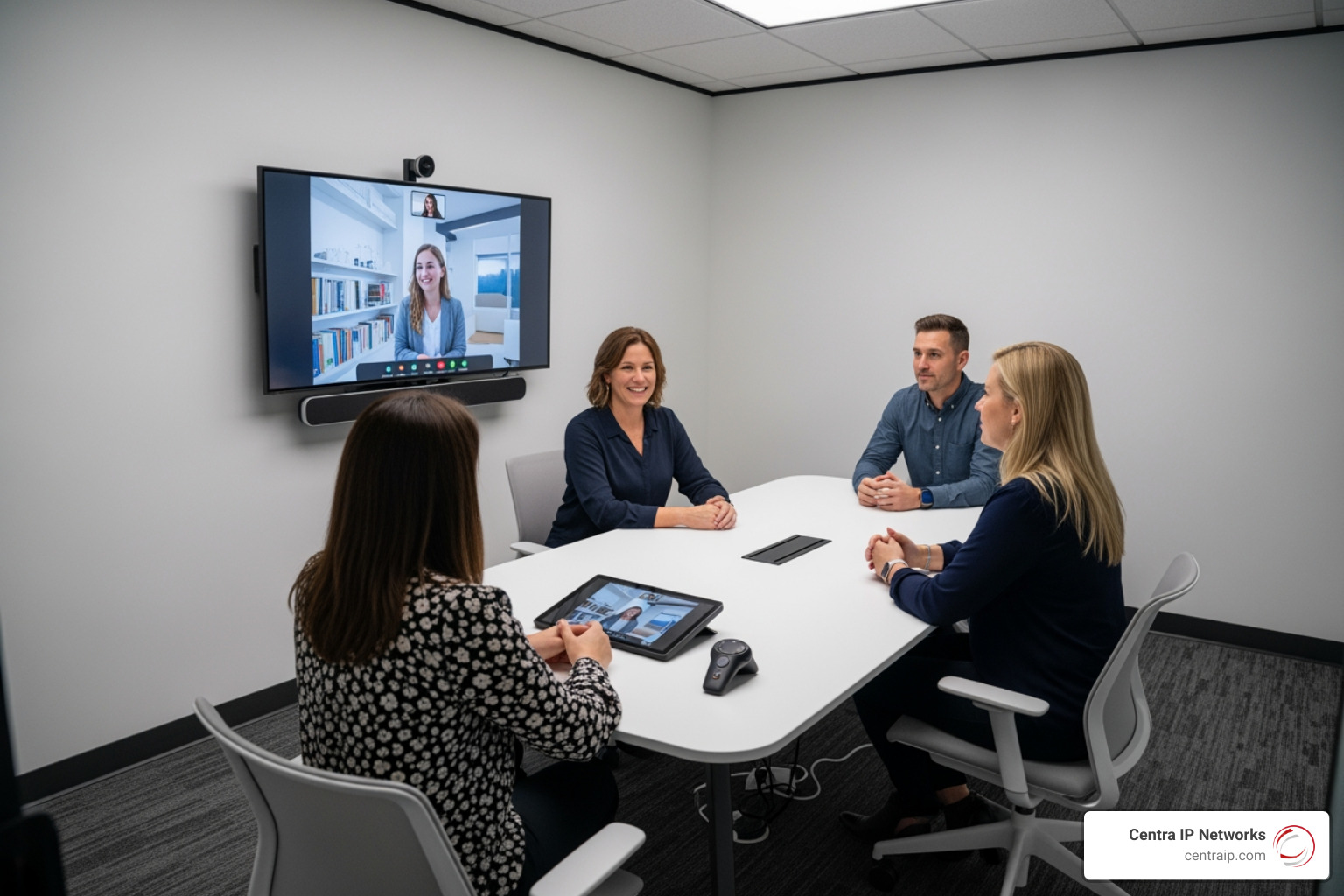
Small rooms work best with all-in-one video bars. These combine camera, microphones, speakers, and software into one compact unit. They are easier to install, need less cabling, and fit the “walk in and go” model really well.
For huddle rooms, look for:
- Wide field of view camera
- Simple wall or display mounting
- Minimal cables
- Touch controller support
- Quick deployment
A good example in this category is the Logitech Rally Bar Mini, which is built for small spaces and can be a strong fit when you want fast installation and clean design.
Best Google Meet conference rooms for 5–10 people
Medium rooms usually need a little more reach. You may still use an all-in-one device, but microphone expansion and table coverage become much more important.
This size is a common sweet spot for:
- ASUS Google Meet hardware kits
- Lenovo room kits
- Video bars with expansion mics
- Dedicated touch controllers placed near the table entrance
In medium rooms, we usually recommend thinking beyond “does it fit” and focusing on “can the farthest seat be heard clearly?” Bad audio ruins more meetings than bad video. Every IT team learns this eventually.
Best Google Meet conference rooms for 11+ people
Large rooms often need modular AV rather than a single bar under the display. This is where PTZ cameras, smarter framing, dedicated compute, and extra microphones come into play.
Typical large-room needs include:
- Mechanical pan-tilt-zoom camera or advanced AI camera
- Expanded mic coverage
- Larger speaker output
- Longer cable runs
- Flexible display options
- Better control of room acoustics
Huddly’s Smart Camera XL is designed for large rooms, while Logitech’s Rally family can scale with added mic pods. Research indicates Logitech Rally Bar solutions can support spaces from huddle rooms up to extra-large rooms, and Rally Plus can handle up to 7 mic pods for larger environments.
Hardware partners and popular device options
Key Google Meet hardware partners include:
- Logitech
- Lenovo
- ASUS
- Acer
- Huddly
A few practical notes:
- Logitech is especially strong for room-size flexibility
- Lenovo and ASUS are well known for Google Meet room kits
- Huddly cameras are used in people-first room experiences
- Google hardware partners commonly offer a 2-year limited warranty
- Optional 1-year warranty extensions are often available through resellers
How to compare kits by room size and deployment model
When comparing solutions, do not just compare camera specs. Compare deployment style too.
| Room size | Best fit | Typical hardware style | Deployment notes |
|---|---|---|---|
| Small 1-4 | Huddle spaces | All-in-one video bar | Fast install, fewer cables |
| Medium 5-10 | Team rooms | Bar plus mic expansion or room kit | Better table coverage |
| Large 11+ | Boardrooms, training rooms | Modular system with PTZ and extra mics | More scalable, more cabling |
You may also choose between:
- Google Meet Compute: PC-style room deployment with a separate compute device
- Android-based appliances: Meet runs directly on the room device, often simplifying cables and setup
AI features that improve hybrid meetings in Google Meet conference rooms
Google Meet rooms are not just about hardware anymore. A big part of their value comes from AI.
How Google AI balances in-room and remote participants
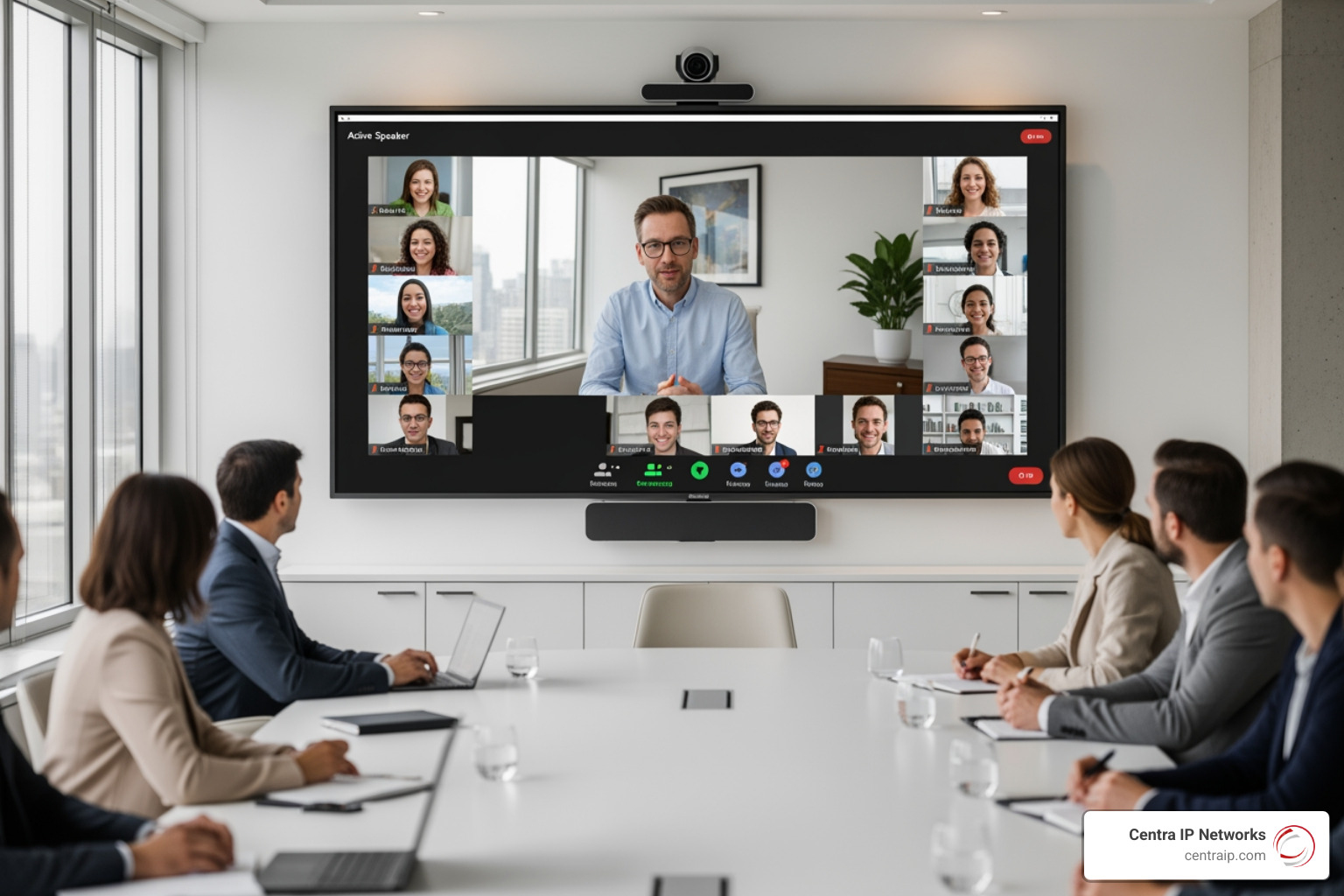
Google AI helps make hybrid meetings feel less lopsided through features such as:
- Dynamic layouts
- Face match
- Portrait tiles or portrait mosaics
- Smarter framing of speakers and in-room attendees
These features aim to give remote participants a better view of who is talking and help in-room attendees appear more naturally on screen. That matters because hybrid meetings fail when remote people feel like they are staring at a distant table of tiny heads.
Gemini features available in Google Meet
Google has continued expanding Gemini inside Meet. Depending on edition and rollout, AI-powered features may include:
- Take notes for me
- Ask Gemini in Meet
- Smart notes and recaps
- AI-generated summaries with citations when transcripts are enabled
- Real-time speech translation
- Translated captions
On the developer side, Google also documents how smart notes and transcripts can be configured as meeting artifacts through meeting space settings. See Configure meeting spaces and members.
Companion Mode benefits for in-room participants
Companion Mode solves a common hybrid problem: in-room attendees want to participate digitally without creating feedback loops.
With Companion Mode, people in the room can join from their laptops or personal devices to:
- Raise hands
- Use chat
- Answer polls
- Join Q&A
- Access personal features without using room audio
That means the room hardware handles the microphone and speaker duties, while individual users still get interactive controls. It is a practical answer to the “second screen” problem.
Breakout rooms and collaboration features in room-based meetings
Google Meet also supports collaboration features that matter in larger meetings:
- Breakout rooms
- Co-host controls
- Moderated meeting settings
- Polling and Q&A
- Shared notes and recaps
For step-by-step host instructions, see Use breakout rooms in Google Meet. And for a broader look at hybrid collaboration, see our guide to the Benefits of Video Conferencing for Today’s Hybrid Workplaces.
Setup, admin configuration, and the Connect Room feature
Hardware is only half the job. The other half is setup, admin policy, and room behavior.
How Connect Room works in Google Meet conference rooms
Connect Room is one of the most interesting Meet room features released recently. Rolled out broadly beginning April 20, 2026, it lets users join a nearby Google Meet room from their laptop using ultrasound proximity detection.
Here is the basic workflow:
- Open Google Meet in Chrome on a laptop
- Stay in the pre-meeting green room
- Make sure the laptop microphone is active
- Meet detects a nearby room device
- Click Connect room
- Join using the room hardware, often with Companion Mode attached to the laptop experience
If multiple nearby rooms are detected, users may see room disambiguation options. This is especially helpful in offices with several conference rooms close together.
Admin settings required for Proximity Detection and in-room booking
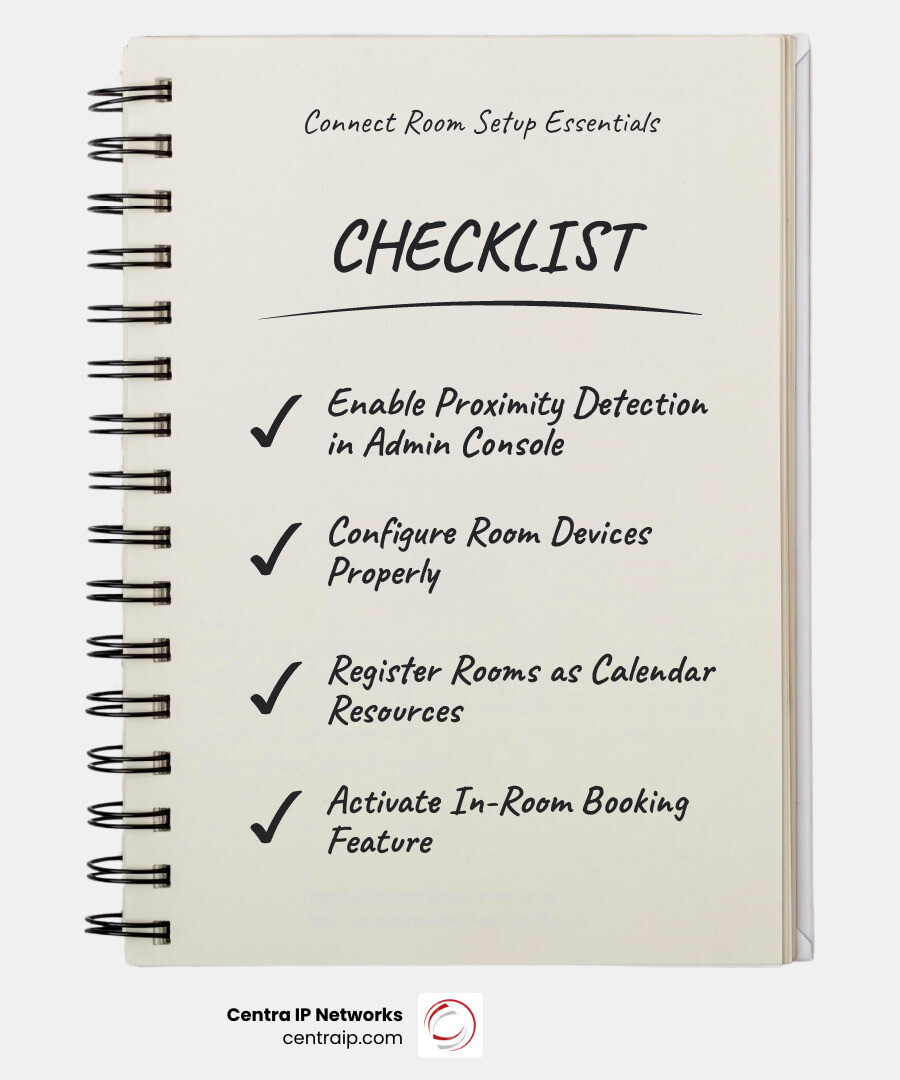
For Connect Room to work well, admins should verify:
- Proximity Detection is enabled
- Room devices are properly configured
- In-room booking is enabled if ad hoc room booking is desired
- Rooms are registered as resources in Google Calendar
Admins can also enable direct room booking from Meet hardware. Users may be able to book an available room for 30 or 60 minutes directly from the device, depending on policy. Helpful setup docs include:
- In-room bookings with Google Meet hardware
- Book a conference room directly from a Google Meet hardware device
Common setup requirements before deployment
Before deploying, make sure you have:
- A properly licensed Google Workspace environment
- Room resource accounts in Google Calendar
- Registered rooms and displays
- Reliable network connectivity
- Correct microphone permissions on user laptops for Connect Room
- Chrome browser for Connect Room use
- Thoughtful physical placement of rooms to reduce cross-room interference
If users are often near multiple rooms, door position and spacing matter more than most planning documents admit.
Troubleshooting Google Meet conference rooms and Connect Room issues
Common issues and fixes include:
Missing Connect room button
- Use Chrome on laptop or desktop
- Confirm microphone access is allowed
- Make sure the laptop mic is active in the green room
Room not detected
- Disconnect USB headsets or Bluetooth audio devices
- Use the built-in laptop microphone
- Disable macOS Voice Isolation or certain Windows audio enhancements if they filter ultrasound
Wrong room detected
- Close the conference room door
- Reduce signal bleed from adjacent rooms
- Turn off Proximity Detection on secondary devices in the same room if needed
High-pitched sound reported
- Some users or pets may hear the ultrasound tone
- Temporarily disable detection in room settings if necessary
Most of these are not “broken hardware” issues. They are usually environmental or audio-filtering issues.
Advanced room configuration for IT teams
For larger organizations, Google Meet meeting spaces can be configured programmatically. That includes:
- SpaceConfig settings
- Access controls
- Moderation rules
- Auto-recording
- Transcription
- Smart notes
- Attendance reports
- Space member roles such as co-host
For technical teams managing standardization at scale, Google’s Configure meeting spaces and members documentation is worth reviewing.
Interoperability, case studies, and how to get started
One of the best reasons to consider Google Meet hardware is that it does not force your business into a one-platform bubble.
Joining Zoom, Webex, and Microsoft Teams from Google Meet conference rooms
Google Meet hardware supports interoperability with:
- Zoom
- Webex
- Microsoft Teams
That means your team can often join cross-platform meetings with one touch instead of scrambling to find a guest laptop and dongle from 2017. In mixed environments, this is a major operational advantage.
Real-world examples of organizations using Google Meet hardware
A widely cited example is Xero, which reported spending less time supporting 200 Google Meet conference rooms than the 10 or 12 rooms it had with its previous video conferencing equipment. That is a strong illustration of the value of standardization and simpler room management.
Google also highlights organizations using Meet hardware alongside Google Workspace tools to support collaboration and app development work. The main takeaway is not the company name. It is the pattern: fewer support tickets, simpler joins, better consistency.
How to buy, deploy, and scale Google Meet conference rooms
The best rollout strategy is usually:
- Standardize room types
- Pilot one small, one medium, and one large room
- Test booking, audio pickup, and cross-platform joins
- Document room standards
- Scale with approved hardware bundles and warranty planning
Organizations can buy through Google sales or authorized resellers. Helpful starting points include:
- Google Meet hardware for conference rooms
- Sistemas de videoconferencias de Google Meet | Google Workspace
At Centra IP Networks, we usually recommend treating conference rooms as part of the broader communications stack, not as isolated AV islands. Because we provide managed IT and cloud communications under one provider model, we can help simplify network readiness, device standards, and support workflows across locations in Dallas, Fort Worth, Orlando, Tampa, St. Petersburg, Clearwater, and Sarasota.
Frequently Asked Questions about Google Meet conference rooms
Can Google Meet room hardware work with Zoom, Webex, and Microsoft Teams?
Yes. Google Meet hardware supports interoperability with Zoom, Webex, and Microsoft Teams, including one-touch join workflows in supported scenarios. That is especially useful in companies working with outside clients, vendors, or partners on different platforms.
What do I need to set up Google Meet conference rooms correctly?
At minimum, you need:
- A certified room hardware kit
- A display
- A room resource in Google Calendar
- Google Workspace admin access
- Reliable wired or well-managed network connectivity
- Correct permissions and browser support for features like Connect Room
You may also need microphone expansion, better acoustics, or modular AV depending on room size.
What should I do if Connect Room or proximity detection is not working?
Start with the basics:
- Use Chrome on a laptop or desktop
- Allow microphone permissions
- Keep the laptop microphone active
- Disconnect USB or Bluetooth audio devices
- Turn off audio filtering features that may block ultrasound
- Check for interference from nearby rooms
- Confirm Proximity Detection is enabled on the room system
If the issue persists, review admin settings and room placement before assuming the device is faulty.
Conclusion
The best Google Meet conference rooms are the ones that disappear into the background. Meetings start quickly, audio is clear, the camera frames people well, and nobody wastes the first ten minutes saying, “Can you hear me now?”
Google Meet hardware gives organizations a flexible path from small huddle spaces to large boardrooms, with strong partner options, AI enhancements, and cross-platform support. Add features like Companion Mode, Gemini-powered notes, and Connect Room, and the meeting room becomes much easier to use and easier to scale.
At Centra IP Networks, we help businesses design communication environments that are simpler to manage and easier for teams to adopt. Because we combine managed IT, connectivity, cloud communications, and support through one provider model, we can help you standardize room technology without adding another layer of vendor chaos.
If you are planning a room refresh or building a hybrid meeting standard for 2026, start with the fundamentals: room size, audio coverage, calendar setup, network readiness, and user simplicity. From there, the right Google Meet setup becomes much easier to choose.
For more background, explore our Video Conferencing solutions page and our article on What is Video Conferencing and How Does it Work?.